Call of Duty: Mobile
Screenshots
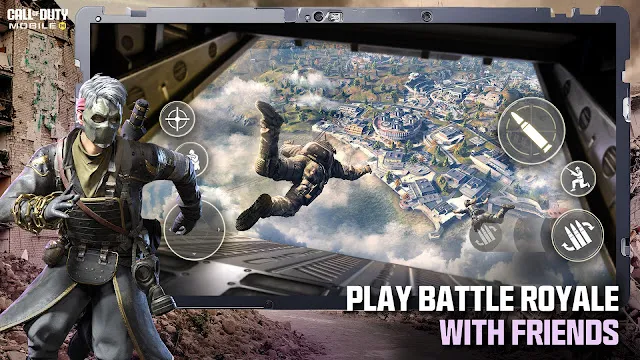
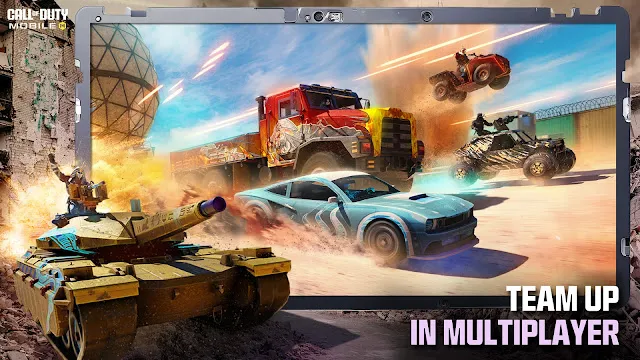
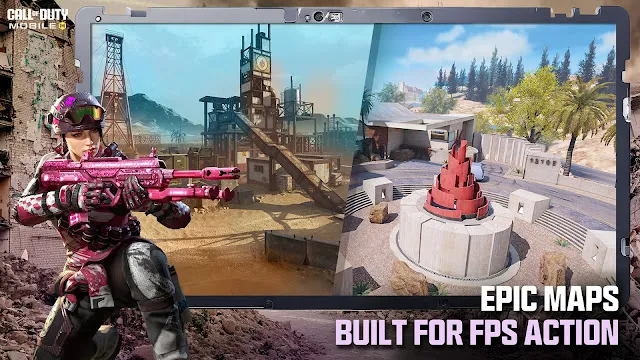
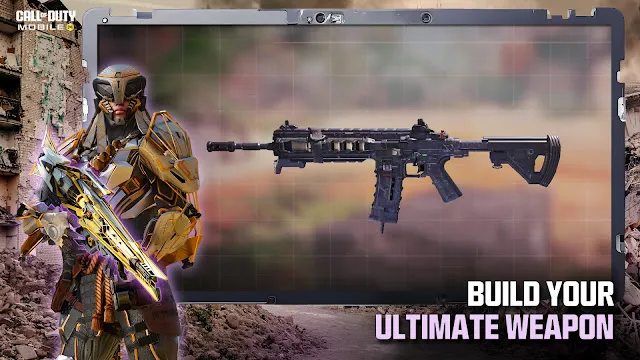
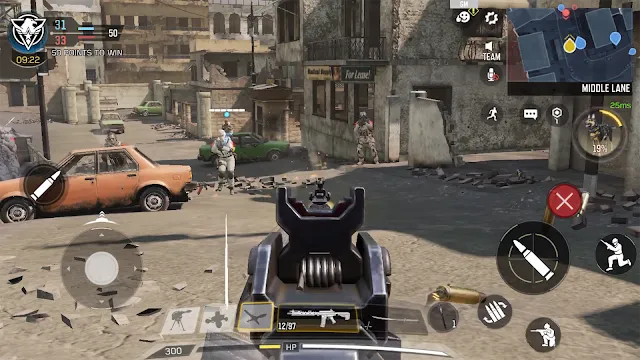
Call of Duty: Mobile brings the iconic console experience to your Android device. This game delivers thrilling, high-quality first-person shooter action. You can play anywhere and at any time. It masterfully combines classic maps, modes, and characters into one polished package. Best of all, the core game is completely free to download and play.
Furthermore, the controls are expertly optimized for touchscreens. You can customize the layout to fit your style perfectly. The graphics are impressive, pushing mobile devices to their limits. As a result, you get a visually stunning and responsive gameplay experience. It truly feels like a premium title in the palm of your hand.
Your Guide to Installing Call of Duty: Mobile via APK
Sometimes, you can’t find your favorite game on the official app store. Perhaps it’s not available in your region. Maybe your device isn’t officially supported. In these cases, installing an APK file is a handy solution.
This guide will walk you through the safe process of downloading and installing the Call of Duty: Mobile APK on your Android device.
Step 1: Enable Installation from Unknown Sources
First, you must allow your phone to install apps from outside the Google Play Store. The steps are simple.
- Go to your phone’s Settings menu.
- Next, scroll down and tap on Apps or Security.
- Then, look for and enable “Install unknown apps” or “Unknown sources.”
- Select the browser you will use for the download (like Chrome or Firefox).
- Finally, toggle the permission to “Allow from this source.”
Your device is now ready for the APK installation.
Step 2: Find a Trusted Source and Download the APK
Now, you need to Download the COD APK file.
- Open your web browser and visit Filetomob.com.
- Then, use the search bar to look for “Call of Duty: Mobile.”
- Make sure you select the latest version of the game.
- Finally, tap the “Download Call of Duty: Mobile APK” button. The file will begin downloading.
Step 3: Install the Call of Duty: Mobile APK
Once the download is complete, you can find the file in your “Downloads” folder or your notification panel.
- Tap on the downloaded APK file.
- An installation screen will pop up. Then, simply press the “Install” button.
- The process will take a minute. Wait for the installation to finish.
- After it’s done, you will see an “Open” button. You can open the game immediately or press “Done.”
Step 4: Download the Additional Game Files
Importantly, the APK file is just the installer. The game itself requires a large amount of additional data.
- Open the Call of Duty: Mobile app.
- The game will then prompt you to download extra resources. This can be several gigabytes, so connect to a Wi-Fi network.
- Be patient during this download. It is essential for the game to run properly.
Troubleshooting Common Issues
Sometimes, you might face a small problem. Here are quick solutions:
- “App not installed” error: This often means the APK file is corrupt. Simply delete it and download a fresh copy.
- Game crashes on launch: Ensure your phone meets the minimum requirements. Also, try closing all other running apps.
- Login problems: Check your internet connection. Furthermore, make sure you are using the correct login details for your Activision, Facebook, or guest account.
Final Recommendations
Congratulations! You have successfully installed Call of Duty: Mobile. For the best experience, remember to:
- Play on a stable internet connection.
- Keep the game updated by checking your APK source for new versions.
- Enjoy the battle!
Call of Duty Mobile: Your Quick-Start Guide
You just installed Call of Duty Mobile (CODM). Get ready for fast-paced action! A proper setup is your first mission. We show you how to start strong and dominate your matches.
Initial Setup and Account Linking
Secure your account immediately. Never skip this step. You want to protect all your hard-earned progress.
- Link Your Account: You must link your progress to an external account. Use Activision, Facebook, or Google Play Games.
- Save Your Data: This prevents loss if you change devices or delete the app. Link the account now.
- Grant Permissions: The game will request certain access. Expect requests for your microphone for team communication. It also needs storage to download game files. Review permissions carefully, then accept.
Mastering Mobile Controls
Effective controls are the key to high-level play. Do not use the default settings for long. You must customize your HUD.
Simple vs. Advanced Mode
The game offers two primary shooting modes. Choose the right one for your goals.
- Simple Mode: The game automatically fires when your crosshair aims at an enemy. This works for casual play. It severely limits your control.
- Advanced Mode: You manually control when you fire. This requires more skill.
- Choose Advanced Mode immediately for competitive success. You gain full control over every shot.
HUD Customization: The Key to Victory
The default button layout is not optimal. You must adjust your Heads-Up Display (HUD).
- Access Settings: Go to your game settings and find the Controls section.
- Drag and Resize: Move crucial on-screen buttons. Place your fire, jump, and crouch buttons where your fingers naturally rest.
- Find Your Fit: A comfortable layout improves your reaction time. Test and adjust until you find perfection.
The “Claw” Technique
Advanced players use a technique called the Claw.
- Use More Fingers: This involves using three or four fingers to play. Your thumbs handle movement and aim. Your index fingers manage shooting and jumping.
- Increase Mobility: The Claw allows you to move, jump, and shoot simultaneously. This makes you a much tougher opponent. Start practicing a multi-finger setup early on.
Loadouts and Progression
Your weapons and gear define your playstyle. Invest time in building effective loadouts.
Weapon Variety
CODM features many weapon classes. Each serves a specific purpose.
- Assault Rifles (ARs): They offer a balanced mix of range and damage. Use them for general combat.
- Submachine Guns (SMGs): They excel in close-quarters battles. Use them for aggressive, fast-paced play.
- Snipers: They dominate at long range. Use them for precision and elimination.
- Light Machine Guns (LMGs): They provide heavy sustained fire. Use them to suppress enemies and hold objectives.
The Gunsmith Feature
The Gunsmith allows deep weapon customization. You must use this tool to optimize your gear.
- Attachments: Add scopes, grips, and magazines to your weapon. Attachments improve stability, range, and firing speed.
- Perks: Equip perks to gain passive bonuses. Tailor your loadout to your chosen playstyle. Do you want to move faster or reload quicker? Gunsmith makes it happen.
The Battle Pass System
The Battle Pass is your main path for earning rewards.
- Earn XP: Play matches and complete daily challenges. This grants Battle Pass XP.
- Unlock Rewards: Level up the Pass to unlock items. You earn new weapons, cosmetic skins, and unique calling cards.
- Enjoy Progression: The Battle Pass provides a structured way to advance and get valuable gear.
Call of Duty Mobile: A Guide to Every Game Mode
Call of Duty Mobile (CODM) offers diverse ways to play. Whether you prefer fast shooting or strategic survival, there is a mode for you.
This guide breaks down the main game modes. Use this to find your perfect match.
Core Multiplayer: The Classic Experience
The Multiplayer mode defines Call of Duty. It focuses on combat between two teams. The maps are smaller, and the action is constant.
Here are the most popular modes:
- Team Deathmatch (TDM) & Frontline: These are the best modes for beginners. Two teams fight to reach a score limit first. You respawn quickly after dying. Therefore, these modes are perfect for practicing your aim and reflexes.
- Domination: This mode requires strategy. Your team must capture and hold three specific points on the map. You earn points over time for every flag you control. Consequently, map control is more important than just getting kills.
- Hardpoint: Hardpoint is similar to Domination but faster. There is only one capture point, and it moves around the map every minute. Your team must rotate quickly to secure the next location.
- Search and Destroy (S&D): This is a high-stakes tactical mode. There are no respawns during a round. One team attacks a target, and the other defends it. Because you only have one life, you must play carefully and communicate effectively.
Rotating Modes Additionally, CODM frequently adds fun, temporary modes. Kill Confirmed requires you to collect dog tags from fallen enemies. Alternatively, Gunfight offers intense 2v2 battles with randomized weapons.
Battle Royale: Large-Scale Survival
Battle Royale (BR) changes the pace. You drop onto a massive island with up to 100 players. The goal is simple: be the last squad standing.
Map Overview The maps, such as Isolated and Blackout, are enormous. They feature diverse terrain, including snowy mountains, deserts, and urban cities. You must scavenge for weapons and armor immediately after landing.
Classes and Abilities Unlike other Battle Royale games, CODM uses a Class system. This lets you customize your playstyle.
- Medic: Heals teammates rapidly.
- Scout: Reveals nearby enemy positions.
- Defender: Places a shield for instant cover.
Vehicles Traversing these large maps on foot is dangerous. Fortunately, you can use vehicles. Fly helicopters to reach high ground or drive ATVs for speed. However, be careful, as vehicles make noise and attract enemies.
Zombies and PvE: Fight the Horde
Sometimes, you want to fight the computer, not real players. PvE (Player vs. Environment) modes offer a unique challenge.
Zombies Mode In this mode, you team up with friends to survive endless waves of the undead. You earn points to buy better weapons and unlock new areas of the map. It is less competitive and highly cooperative.
Extraction (DMZ style) occasionally, CODM introduces extraction-based modes. Here, you enter a hostile zone to complete missions and collect loot. You must call for a helicopter to escape with your gear. If you die, you lose everything.
Final Thoughts
Call of Duty Mobile provides endless variety. You can master the fast reflexes of Team Deathmatch, the strategy of Battle Royale, or the teamwork of Zombies.
Jump in, choose your loadout, and dominate the battlefield.
Call of Duty Mobile: Mastering the Gameplay – Tips & Strategies
You want to dominate in Call of Duty Mobile (CODM). This guide gives you the edge. Follow these essential tips. You will improve your game immediately.
HUD and Controls are Key
Your controls must feel right. Customization is your first step to victory.
- Customize Your Layout: Find your comfort zone. Change the button size and position. Make sure they fit your device and hand size. Practice with a custom layout.
- Adjust Sensitivity: Sensitivity controls your aiming speed. Experiment with Camera and ADS (Aim Down Sights) settings. High sensitivity means fast turns. Low sensitivity means precise aiming. Find your sweet spot.
- Use the Claw: Many pro players use the “claw” grip. This uses more than two fingers. It lets you move, jump, and shoot at the same time. Practice the claw grip for top-tier action.
Choose Your Playstyle: Loadouts & Classes
Your equipment defines your role. Pick the right tools for the job.
Multiplayer Loadouts
Multiplayer uses the Create-a-Class system. Build a kit for every situation.
- Primary and Secondary Weapons: Choose a powerful assault rifle or SMG. Always keep a sidearm.
- Perks: Perks give you passive benefits. Equip Lightweight for speed. Use Hardwired to avoid traps. Select perks that match your style.
- Scorestreaks: These unlock after you get enough kills or points. Use a UAV to spot enemies. Deploy a Sentry Gun for area control.
- Operator Skills: This is your temporary special weapon. A Purifier is great for clearing rooms. The K-9 Unit hunts enemies for you.
Battle Royale Classes
Battle Royale (BR) uses specific classes. Each class has unique abilities.
- Scout: Reveal enemy positions. Your team will know where to go.
- Ninja: Move quietly and use a Grapple Hook. Flank the enemy undetected.
- Medic: Quickly heal yourself and teammates. Keep your squad alive in tough fights.
Pro-Tips for Domination
Ready to dominate the battlefield? Use these advanced strategies.
Map Knowledge
Learn every map. Knowledge is power in CODM.
- Learn Spawn Points: Know where enemies reappear. Predict their movement.
- Identify Hot Spots: Locate high-traffic areas. This is where most fights happen. Control these spots.
Use Cover
Do not run in the open. Open ground is a death sentence.
- Stick to Walls: Move from cover to cover. Use boxes, cars, and buildings for protection.
- Practice Dropshotting: Go prone (lie down) while shooting. This makes you a smaller target.
Play the Objective
Focus on the mission, not just kills.
- Objective Wins: In modes like Domination or Hardpoint, captures earn victory. Kills only help you get Scorestreaks.
- Capture the Flags: Secure the points in Domination. Defend the Hardpoint zone. Focus on the goal.
Sound Awareness
Sound gives you a critical advantage.
- Use Headphones: Put on a good pair of headphones. You can hear faint enemy footsteps.
- Pinpoint Location: Determine the enemy’s exact position. Get ready for the ambush.
This guide equips you with winning strategies. Customize your setup. Choose the right loadout. Use the pro tips. Now go out and secure the victory!
Optimize Your Call of Duty Mobile Performance on Android
Get a competitive edge in Call of Duty Mobile (CODM). Optimize your Android device settings. You need smooth gameplay more than stunning visuals. This guide helps you boost performance and manage your resources.
Graphics and Frame Rate Settings
You face a crucial choice in CODM: visual fidelity vs. performance. Higher graphics settings look great. However, they force your phone to work harder. This causes lag and dropped frames. Lag hurts your reaction time.
- Graphics Quality: Set this to “Low”. It reduces the strain on your phone’s processor (CPU and GPU).
Frame Rate: Set this to the “Max” your device allows. Higher Frame Rate (FPS) means smoother motion. You see enemies faster and react quicker. This trade-off gives you a clear competitive advantage.
Pro Tip: Disable resource-heavy options. Turn off Shadow Distance, Depth of Field, and Anti-aliasing.
Battery and Data Concerns
Competitive gaming uses significant battery and mobile data. Manage these resources wisely.
Battery Saving Tips
CODM drains your battery fast. High performance creates heat, which also lowers battery life.
- Lower Brightness: Reduce your screen brightness. The display consumes a lot of power.
- Close Background Apps: Stop all unused applications. They consume RAM and CPU cycles. Access your phone’s recent apps menu and close them completely.
- Use Power-Saving: Keep your battery above 50% charge. Some phones throttle performance when the battery is low. But, do not use your device’s Power Saving Mode during gameplay. It limits performance unnecessarily.
- Avoid Overheating: Play in a cool environment. Avoid playing while charging your phone.
Data Management
CODM uses substantial data for updates and general gameplay.
- Use Wi-Fi: Always use a strong Wi-Fi connection for downloading game updates, maps, and other resources.
- Heavy Gaming: Play long gaming sessions on Wi-Fi, too. It offers a more stable connection and saves your mobile data plan.
- Delete Unused Content: Clear cached game data or unused maps and camos. This frees up storage space. Free storage helps your phone operate at peak efficiency.
Dealing with Lag and Connectivity Issues
Lag spikes ruin an otherwise good match. They cause stuttering, slow reactions, and lost fights. Check for network or device issues.
Basic Troubleshooting Steps
Perform these checks to address connectivity problems:
- Restart the App: Close CODM completely and restart it. This can clear temporary bugs.
- Check Connection: Confirm your Wi-Fi or mobile data signal is strong. Weak signals cause high ping.
- Restart Router: Power cycle your Wi-Fi router. Unplug it for 30 seconds, then plug it back in.
- Close Background Apps: Again, ensure no other apps are using your network in the background. Stop all active downloads or streaming.
Mastering the Call of Duty: Mobile Economy
Call of Duty Mobile features a clear in-game economy. You manage two main currencies. These currencies determine your access to different items.
Free vs. Paid Content: Credits and CP
The game separates its content into two streams. You have free-to-earn items and premium paid cosmetics.
Credits are the basic, free currency.
- You earn Credits easily just by playing the game.
- Completing challenges awards you Credits.
- You use them to buy basic weapons and skins in the Credit Store.
- Credits give free-to-play players good options.
CP (CoD Points) are the premium currency.
- You must purchase CP with real-world money.
- Players use CP to buy the seasonal Battle Pass.
- Exclusive cosmetic bundles and crates also require CP.
- They unlock the most unique and high-tier content.
The Battle Pass: Is It Worth Your CP?
The Battle Pass is a seasonal rewards track. It offers players a path of rewards to unlock. It has two distinct tiers.
The Free Tier:
- Every player gets access to the free tier.
- It offers limited rewards, like Credits and small cosmetic items.
- You progress through this tier simply by earning Battle Pass XP.
The Premium Tier:
- You unlock this paid tier with CP.
- It gives you access to high-quality items.
- These include exclusive Operator skins and Epic weapon blueprints.
- You earn the best rewards here.
The Self-Funding Cycle
Many players wonder if the Premium Pass is a good purchase. The simple answer is yes, if you play consistently.
- The Premium Pass includes CP rewards.
- You earn CP back as you complete the tiers.
- Therefore, you earn the full cost of the next season’s Pass.
- You only pay real money one time.
- Then, you use the recovered CP to buy the next Pass indefinitely.
You must reach the final tiers to recover the full cost. Make sure you play enough to complete the Pass each season.
Lucky Draws and Crates: The Monetization Systems
CoD Mobile also uses monetization systems based on chance.
Lucky Draws present a pool of 10 items.
- One item is usually a rare Mythic or Legendary weapon skin.
- You use CP to “draw” an item from the pool.
- The price increases with each draw you attempt.
- The odds of getting the best item are very low at first.
- You guarantee the top prize only after buying all 10 draws.
Crates are essentially loot boxes.
- You buy Crates with CP.
- The Crates contain random items.
- You face a chance-based system for the best rewards.
- Many players often receive duplicate or common items.
These systems offer an alternative way to get exclusive cosmetics. They require much more CP than the Battle Pass. Players should understand the element of chance involved.
Call of Duty Mobile Pro Tips and Advanced Features
Master Call of Duty Mobile and dominate the battlefield. Use these pro tips. Leverage advanced features for a competitive advantage.
Graphics Settings Optimization: Boost Your Performance
Prioritize frame rate over graphical fidelity. A high frame rate gives you a significant competitive edge. It allows for smoother gameplay and quicker reaction times.
- Set Graphic Quality to Low or Medium.
- Select Frame Rate to Max or Ultra.
You can enable or disable specific effects. This further improves performance. Disabling certain options minimizes visual clutter.
- Disable the Ragdoll effect.
- Turn off Real-Time Shadows. Shadows can hide enemies. Removing them also improves performance.
- Adjust Field of View (FOV). A higher FOV gives you better peripheral vision.
Always restart the game after changing graphic settings. This ensures the changes take effect properly. Test your new settings in a match.
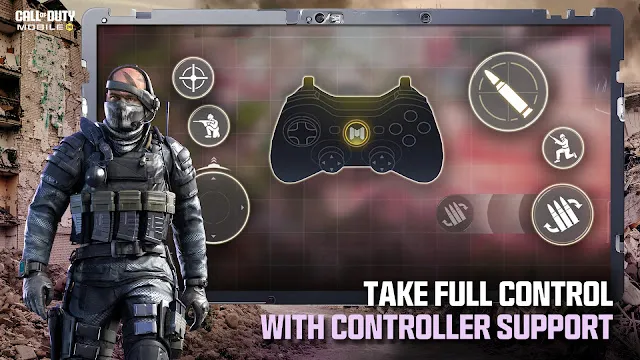
Controller Support: Expanding Your Control
Call of Duty Mobile supports external controllers. Use a controller for a console-like experience.
- Supported Controllers: The game officially supports most Xbox and PlayStation controllers.
- This includes Xbox One and PlayStation 4 (DualShock 4) controllers.
- Connection: Use Bluetooth to pair the controller with your mobile device.
However, controller use has specific limitations. Developers implemented these to maintain balance.
- Separate Lobbies: The game places controller players in controller-only lobbies.
- You will rarely match against players using touch controls only. This separation ensures fair play.
- Aim Assist: Controller players receive a degree of aim assist. Touch players also have their own form of assistance.
- Learning Curve: Switching requires practice. Controller movement is often smoother.
Controller support offers more precise movement and aiming. Therefore, many pro players still prefer customized four-finger or six-finger touch controls for maximum agility.
Communication and Social Play: Teamwork Wins
Effective communication is crucial for victory. Use the in-game tools to coordinate with your team.
- Voice Chat: Use the in-game voice chat. It allows for real-time tactical calls.
- Keep it clear. Only share essential information.
- Use the Push-to-Talk feature to minimize background noise.
- Quick Messages: Utilize quick tactical messages. These are pre-set phrases.
- Use them to call out enemy locations. For example, “Enemy spotted!”
- These messages are fast and easy to use in intense moments.
Furthermore, social features enhance your experience. Joining a Clan unlocks exclusive content.
- Join a Clan: Find a group of active players. Clans provide a sense of community.
- Clan Wars: Participate in weekly Clan Wars.
- Complete various tasks. These earn your Clan points.
- A high rank grants access to exclusive rewards. These include unique weapon skins and character outfits.
Playing with friends improves your strategy. Thus, always coordinate your loadouts and roles before a match.
Frequently asked questions about Call of Duty Mobile For Android
What is Call of Duty Mobile?
Call of Duty Mobile is a free first-person shooter game for Android.
It includes Battle Royale, Multiplayer, and special limited-time events.
You can play solo or with friends online.
What are the minimum requirements to play on Android?
To run the game smoothly, your device needs to meet these requirements:
- Operating System: Android 5.1 or higher.
- Processor: At least 2 GB of RAM.
- Storage: Ensure you have over 2 GB of free space. Remember, updates require more room.
Is the game truly free to play?
Yes. You can download and play Call of Duty: Mobile completely for free. It offers optional in-game purchases for cosmetic items, like character skins and weapon blueprints. These purchases do not affect gameplay balance.
How can I improve lag and performance on my Android phone?
Lag can be frustrating. Fortunately, you can try these fixes:
- Lower Graphics Settings: Go to Settings > Graphics. Then, switch to a lower frame rate and graphics quality.
- Close Background Apps: Always close other applications before playing.
- Use a Stable Connection: Prefer a strong Wi-Fi network over mobile data.
- Keep Your Device Cool: Overheating can cause throttling.
What game modes are available?
Call of Duty: Mobile features diverse modes. For example:
- Multiplayer: Classic team deathmatch, search and destroy, and domination.
- Battle Royale: A massive 100-player fight for survival on a large map.
- Zombies: A cooperative mode where you fight waves of the undead (subject to availability).
How do I get better weapons?
You earn new weapons and attachments by:
- Leveling up your player account.
- Completing seasonal and daily missions.
- Progressing through the Battle Pass.
Can I play Call of Duty Mobile with a controller?
Yes.
The game supports Bluetooth controllers.
Just pair your controller with your Android device, then enable controller support in the settings.
How do I fix login issues?
Try these steps:
- Restart the game
- Clear app cache
- Check your internet
- Update the app
If the problem continues, try logging in with another method like Facebook or Activision.
How do I reduce the game’s storage size?
- The game allows you to delete unused resource packs.
- Open Settings → Other → Delete Downloaded Resources.
- Remove the packs you don’t use (like older maps).
How do I improve my aim in the game?
Try these tips:
- Use sensitivity settings that feel comfortable
- Enable “Fixed joystick”
- Use gyroscope if your device supports it
- Practice in Training Mode
Small adjustments can make a big difference.